MCHRWS · Screenshots के साथ आसान गाइड

आपका घर।
आपकी सोसायटी।
एक ऐप में।

Resident और tenant के लिए अलग-अलग आसान steps। Gate पर visitor approval से लेकर bills, family, vehicle, staff और GBM Minutes तक सब कुछ app के screenshots से समझें।

Screenshots demo account से सीधे लिए गए हैं। इनमें नाम और bill amounts dummy data हैं; Society Library के documents असली society records हैं।
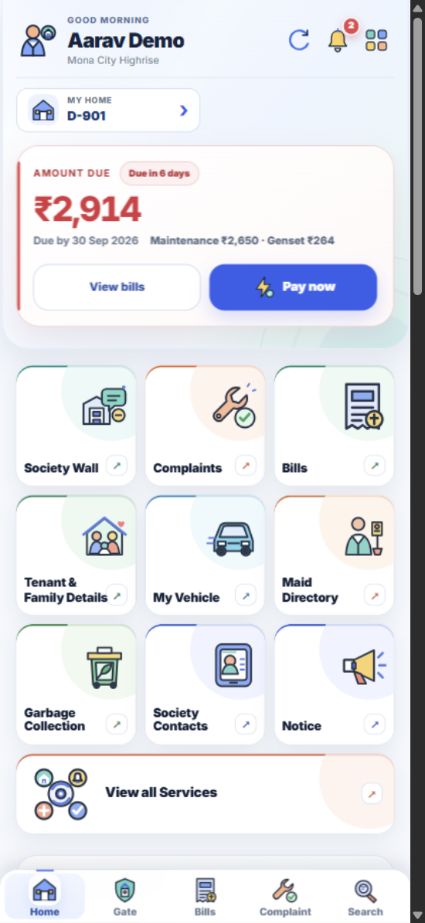
MCHRWS resident app का demo dashboard
Resident Home · app screenshot
Gate पर controlVisitor request approve करें, pass बनाएँ और visit history देखें।
Bills एक जगहMaintenance, genset, dues और receipts देखें।
घर की detailsFamily, tenant, vehicle और घर के staff का record रखें।
Society से जुड़े रहेंNotices, GBM Minutes, Society Wall, polls और suggestions देखें।
शुरू करें

App समझने के 3 आसान steps

App के buttons English में हैं। यहाँ भी उन्हीं names का इस्तेमाल किया है, ताकि आपको screen पर आसानी से मिल जाएँ।

01

Login करें

Resident Login पर registered mobile number डालें। Password या OTP से Resident और tenant, दोनों login कर सकते हैं।

02

Home और All Services

Home पर रोज़ की services के shortcuts हैं। ऊपर दाईं ओर चार squares दबाकर All Services खोलें।

03

नीचे का menu

Home, Gate, Bills, Complaint और Search के buttons मुख्य screens के नीचे मिलते हैं।

App walkthrough

App के छोटे videos देखें

Demo account पर record किए गए mobile screen videos। इन videos में कोई payment, approval या document submit नहीं किया गया है।

Gate और visitor history

Home से waiting request और पुराने visits तक कैसे जाएँ।

Maintenance और genset bills

दोनों bill tabs और receipts कहाँ देखें।

Tenant documents

Tenant record से document upload form तक कैसे जाएँ।

Flat owners और residents के लिए

Resident की पूरी guide

अपना flat और family record संभालें, services इस्तेमाल करें और society के official documents पढ़ें। हर topic में steps और उसी screen का screenshot है।

01 · शुरुआत

Login करें और अपना dashboard देखें

Registered mobile number से password या OTP के जरिए login करें। Home पर आपका flat, dues, alerts और रोज़ की services दिखती हैं।

  1. Resident Login पर registered mobile number डालें।
  2. Password से Login करें या Login with OTP चुनें।
  3. Home पर My Home से अपना linked flat देखें; ऊपर दाईं ओर चार squares से All Services खोलें।
नीचे Home, Gate, Bills, Complaint और Search की navigation हमेशा उपलब्ध रहती है।
App में यह screen खोलें
Login करें और अपना dashboard देखें का app screenshot, dummy demo data
App screenshot · dummy demo data · बड़ा देखने के लिए tap करें
02 · घर के लोग

Tenant कैसे add करें

नए tenant की details app में भरें। उसका नाम, contact number और रहने की dates एक जगह रहेंगी।
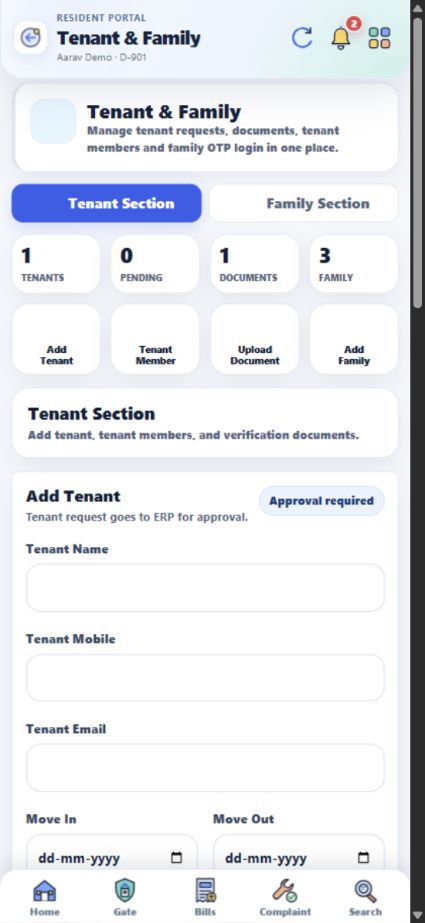
  1. Home → Tenant & Family Details → Tenant Section खोलें।
  2. Add Tenant में name, mobile, email, move in/out और rent dates भरें।
  3. Agreement number और notes जोड़कर Save Tenant दबाएँ।
  4. Tenant Records में approval और active status देखें।
नए tenant का request office approval के बाद active होता है।
App में यह screen खोलें
Tenant कैसे add करें का app screenshot, dummy demo data
App screenshot · dummy demo data · बड़ा देखने के लिए tap करें
03 · Verification

Tenant के members और documents add करें

Tenant की family details, rent agreement, police verification और ID proof उसके record में रखें।
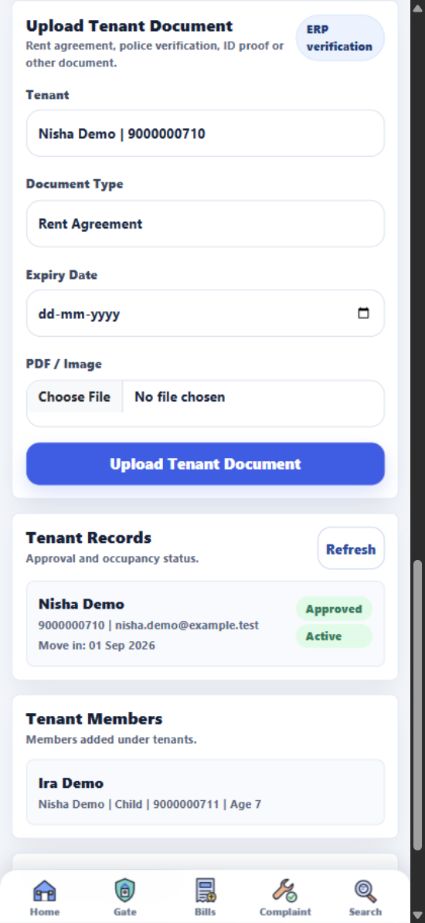
  1. Tenant Section में Tenant Member चुनें, tenant select करें और member details save करें।
  2. Upload Document खोलें और tenant चुनें।
  3. Document Type, expiry date और PDF/image file देकर Upload Tenant Document दबाएँ।
  4. नीचे Tenant Members और Tenant Documents में record तथा verification देखें।
Demo screen में Nisha Demo का approved tenant record और उसका member दिखता है।
App में यह screen खोलें
Tenant के members और documents add करें का app screenshot, dummy demo data
App screenshot · dummy demo data · बड़ा देखने के लिए tap करें
04 · Family

Family members और emergency contact add करें

अपने flat से जुड़े family members के नाम, relation और mobile number add करके घर की details updated रखें।
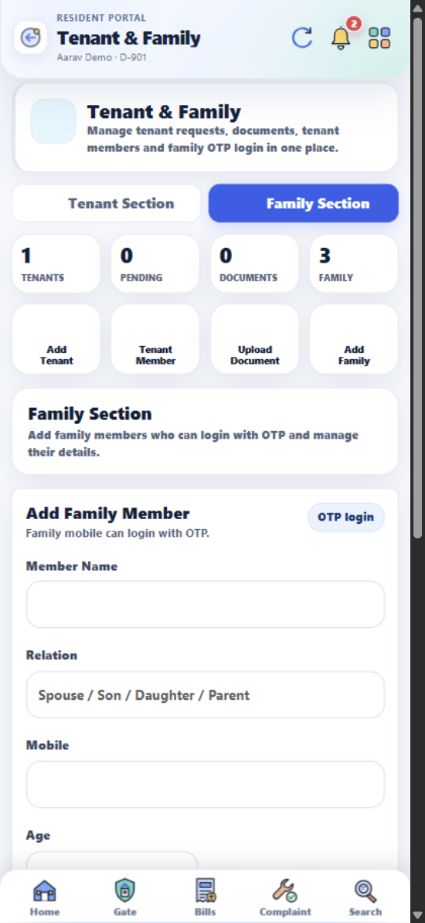
  1. Tenant & Family Details → Family Section खोलें।
  2. Add Family Member में name, relation, mobile और age भरें।
  3. जरूरत हो तो Emergency चुनें और Save Family Member दबाएँ।
  4. Family Details में Edit और Delete से entry संभालें।
Family member का registered mobile OTP login में भी काम आ सकता है।
App में यह screen खोलें
Family members और emergency contact add करें का app screenshot, dummy demo data
App screenshot · dummy demo data · बड़ा देखने के लिए tap करें
05 · Parking

Vehicle add करें और parking details देखें

अपनी car, bike या scooter का number flat से जोड़ें, ताकि gate पर vehicle की पहचान हो सके।
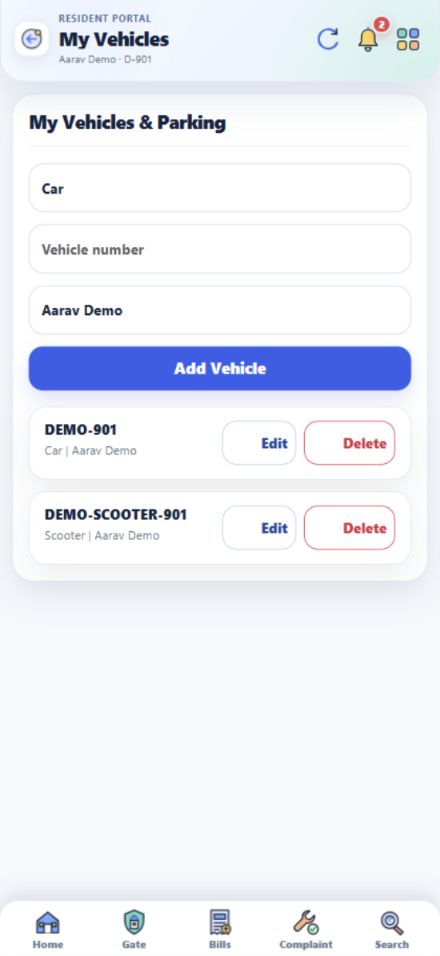
  1. Home → My Vehicle या All Services → Vehicles & Parking खोलें।
  2. Vehicle type, vehicle number और owner name भरकर Add Vehicle दबाएँ।
  3. नीचे अपनी गाड़ियों की list देखें; जरूरत पर Edit या Delete करें।
  4. Parking allocation या sticker की जानकारी के लिए Society Contacts से office से बात करें।
इस screen में vehicle list है; parking slot या sticker request का resident control अभी दिखाई नहीं देता।
App में यह screen खोलें
Vehicle add करें और parking details देखें का app screenshot, dummy demo data
App screenshot · dummy demo data · बड़ा देखने के लिए tap करें
06 · घर का staff

Maid, car washer और घर का staff जोड़ें

Maid Directory में staff खोजें और उसे अपने flat से जोड़ने की request भेजें।
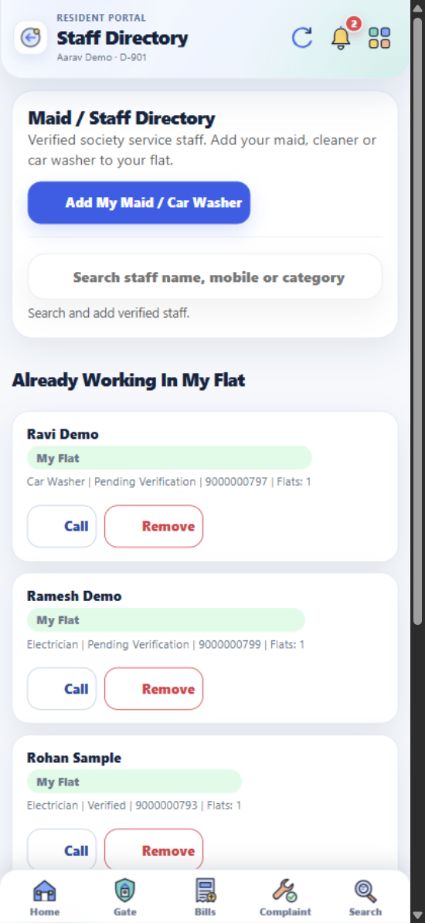
  1. Home → Maid Directory खोलें।
  2. नाम, mobile या category से staff खोजें और Add to My Flat चुनें।
  3. नई maid या car washer के लिए Add My Maid / Car Washer दबाएँ।
  4. Name, mobile, category और notes भरकर Submit करें; verification status वहीं देखें।
घर के staff और society garbage collection की जानकारी अलग screens में मिलती है।
App में यह screen खोलें
Maid, car washer और घर का staff जोड़ें का app screenshot, dummy demo data
App screenshot · dummy demo data · बड़ा देखने के लिए tap करें
07 · Gate security

Gate request देखें और visitor pass बनाएँ

Gate पर visitor आए तो उसका नाम, type, gate और उपलब्ध photo देखकर approve या deny करें।
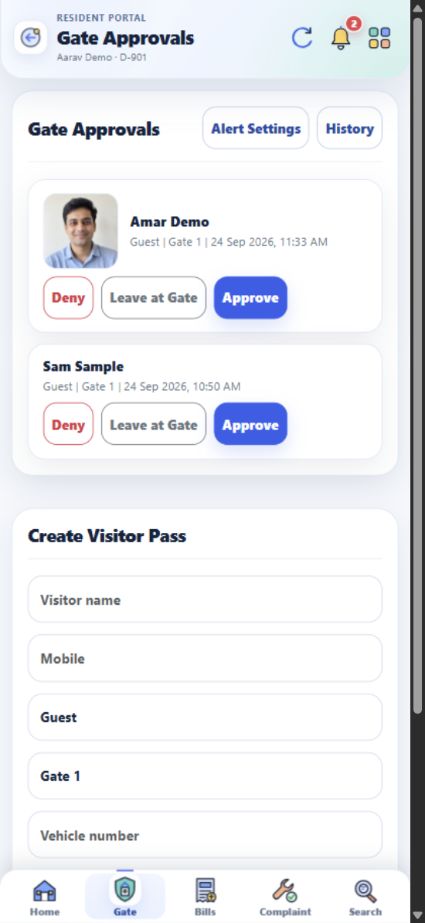
  1. नीचे Gate दबाएँ और waiting request खोलें।
  2. सही visitor के लिए Approve, मना करने के लिए Deny या सामान gate पर छोड़ने के लिए Leave at Gate चुनें।
  3. पहले से आने वाले guest के लिए Create Visitor Pass भरें।
  4. History में पुराने visits और Alert Settings में household notifications देखें।
Photo सिर्फ तभी दिखेगी जब gate ने request के साथ photo जोड़ी हो।
App में यह screen खोलें
Gate request देखें और visitor pass बनाएँ का app screenshot, dummy demo data
App screenshot · dummy demo data · बड़ा देखने के लिए tap करें
Gate · History

Visitor history और alerts देखें

पहले कौन आया था और visitor alerts किसे मिलेंगे, यह Gate की अलग screens में देखें।
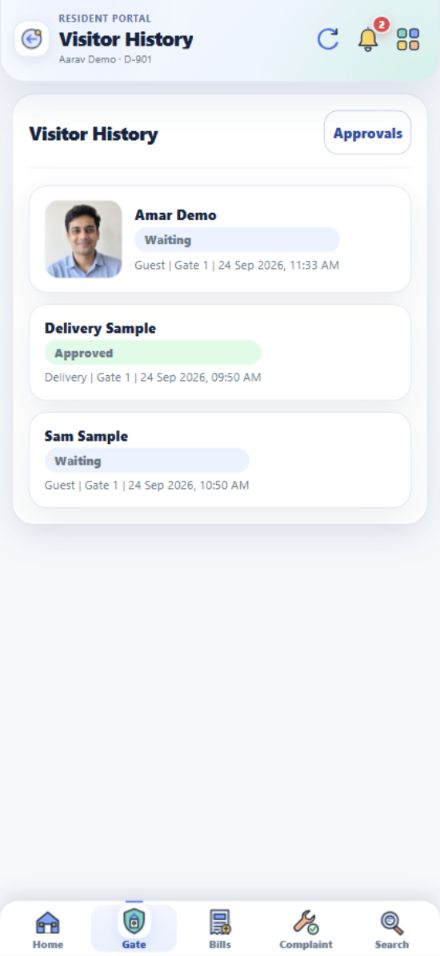
  1. Gate Approvals के ऊपर History दबाएँ।
  2. Visitor History में पुराने requests और entry status देखें।
  3. Gate Approvals में Alert Settings दबाएँ।
  4. किस household member को visitor alert मिले, उसकी उपलब्ध settings save करें।
App में यह screen खोलें
Visitor history और alerts देखें का app screenshot, dummy demo data
App screenshot · dummy demo data · बड़ा देखने के लिए tap करें
08 · Bills

Maintenance, genset bills और receipts देखें

अपने flat के bills, dues, payment history और उपलब्ध receipts एक जगह देखें।
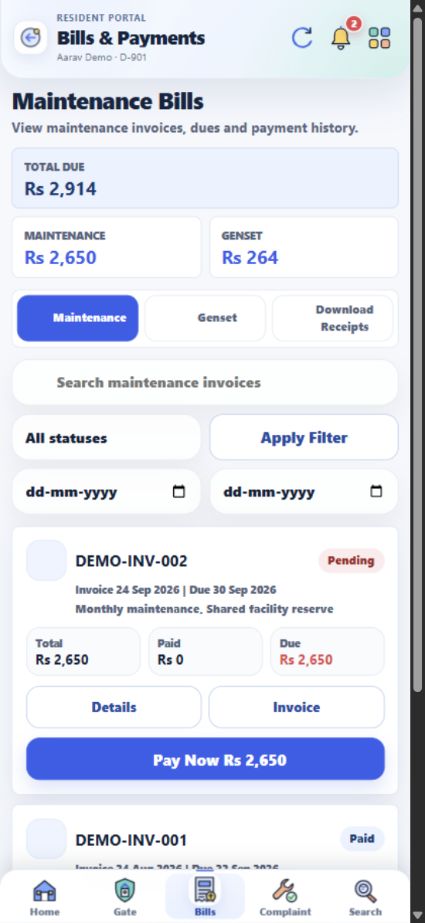
  1. नीचे Bills खोलें। Maintenance tab में invoice और due amount देखें।
  2. Genset tab में meter usage और genset bill देखें।
  3. Download Receipts tab में उपलब्ध receipts खोलें।
  4. किसी invoice के Details से breakdown और payment summary पढ़ें।
Screen पर दिखने वाला Pay Now official payment flow खोलता है; guide का demo payment करने के लिए नहीं है।
App में यह screen खोलें
Maintenance, genset bills और receipts देखें का app screenshot, dummy demo data
App screenshot · dummy demo data · बड़ा देखने के लिए tap करें
Bills · Genset

Genset usage और उसका bill देखें

Genset की meter reading और bill, maintenance से अलग tab में देखें।
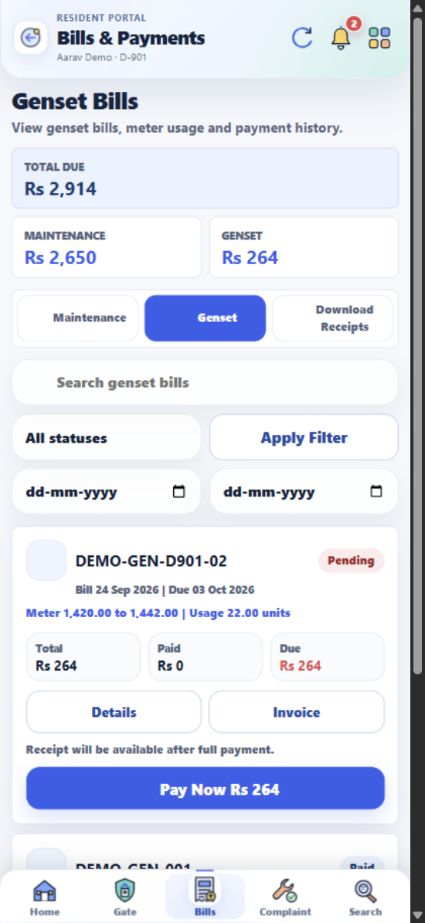
  1. Bills खोलकर Genset tab दबाएँ।
  2. Meter & Usage में reading और units देखें।
  3. Payment Summary से total, paid और pending amount देखें।
  4. नीचे Genset Payment History खोलें।
App में यह screen खोलें
Genset usage और उसका bill देखें का app screenshot, dummy demo data
App screenshot · dummy demo data · बड़ा देखने के लिए tap करें
09 · Helpdesk

Complaint डालें और उसका status देखें

Maintenance, सफाई, security या common area की समस्या का ticket बनाकर उसकी progress देखें।
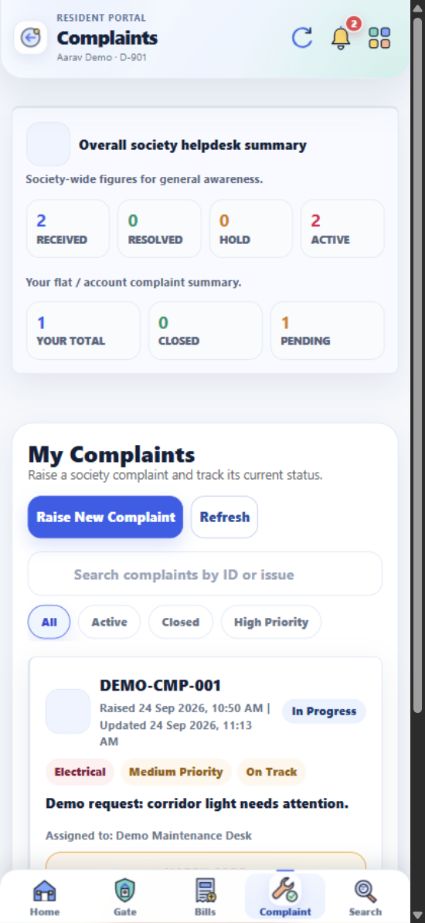
  1. नीचे Complaint या Home → Complaints खोलें।
  2. Issue का category, description और उपलब्ध photo/details देकर submit करें।
  3. All, Active और Closed filters से अपने tickets देखें।
  4. Status, reference number और resolution updates को यहीं follow करें।
Demo में corridor light का ticket progress में दिखता है।
App में यह screen खोलें
Complaint डालें और उसका status देखें का app screenshot, dummy demo data
App screenshot · dummy demo data · बड़ा देखने के लिए tap करें
10 · Daily service

Garbage collection और sweeper update देखें

आज garbage collector कब आएगा, कौन से gate से आएगा और collection हुआ या नहीं, यह देखें।
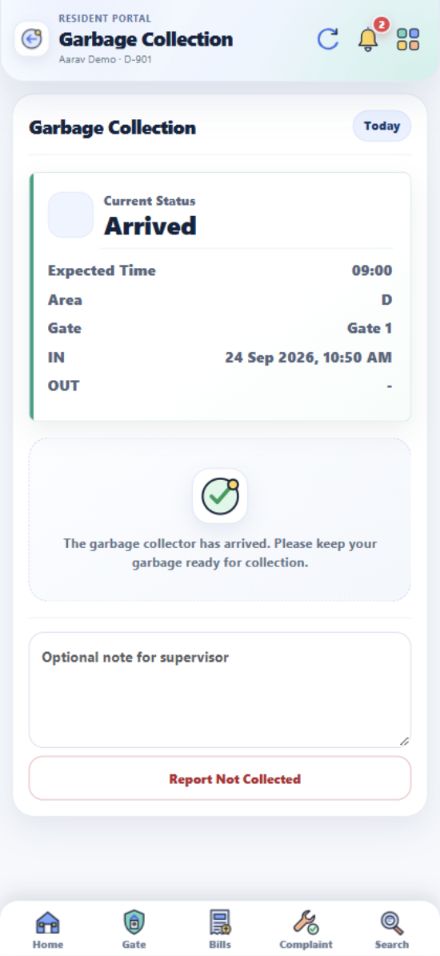
  1. Home → Garbage Collection खोलें।
  2. Status card में आज के collector का समय और area देखें।
  3. Collection miss हो तो note लिखकर Report Not Collected भेजें।
  4. Maid या car washer के records देखने के लिए अलग Maid Directory खोलें।
App में यह screen खोलें
Garbage collection और sweeper update देखें का app screenshot, dummy demo data
App screenshot · dummy demo data · बड़ा देखने के लिए tap करें
11 · Community

Society Wall पर post करें और बात करें

Society के updates पढ़ें, अपना post डालें और पड़ोसियों से बातचीत करें।
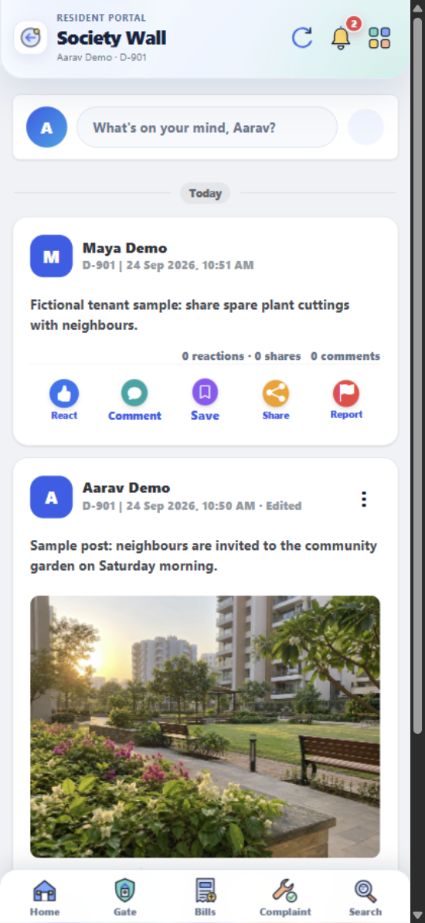
  1. Home → Society Wall खोलें।
  2. What’s on your mind? से अपना post बनाएं; जरूरत हो तो photo जोड़ें।
  3. दूसरों के posts पर React, Comment, Save या Share चुनें।
  4. Latest, Popular और category filters से posts खोजें; inappropriate post के लिए Report इस्तेमाल करें।
App में यह screen खोलें
Society Wall पर post करें और बात करें का app screenshot, dummy demo data
App screenshot · dummy demo data · बड़ा देखने के लिए tap करें
12 · Voting

Poll देखें और vote करें

चल रहे poll के options देखें, अपना vote दें और पहले दिया हुआ vote भी देखें।
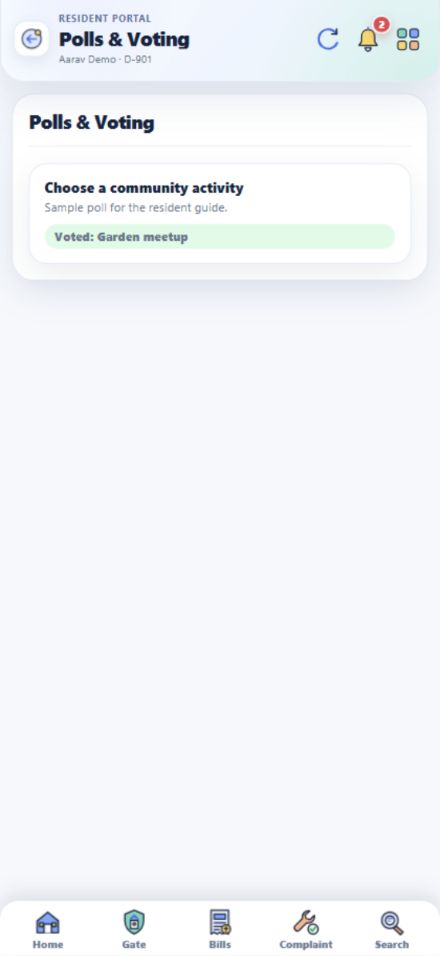
  1. All Services → Polls & Voting खोलें।
  2. Poll का सवाल और उपलब्ध choices पढ़ें।
  3. Active poll में अपना विकल्प चुनकर vote submit करें।
  4. Wall पर बने opinion polls भी Society Wall में दिखाई दे सकते हैं।
Demo poll में पहले से दिया हुआ vote दिखाया गया है।
App में यह screen खोलें
Poll देखें और vote करें का app screenshot, dummy demo data
App screenshot · dummy demo data · बड़ा देखने के लिए tap करें
13 · आपका सुझाव

Suggestion या app feedback भेजें

नई service का idea, general feedback या app से जुड़ी कोई बात सीधे भेजें।
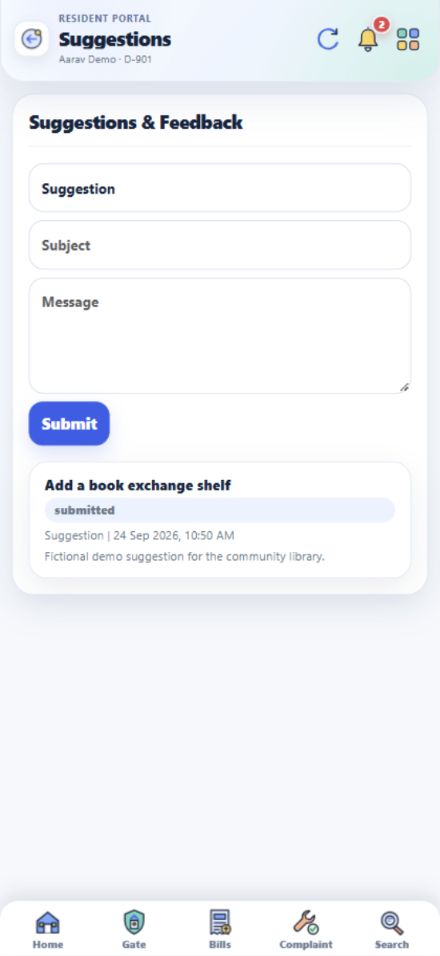
  1. All Services → Suggestions खोलें।
  2. Category में Suggestion, Complaint, App Feedback या Other चुनें।
  3. अपनी बात लिखकर Submit करें।
  4. तकनीकी या maintenance issue का follow-up चाहिए तो Complaints section इस्तेमाल करें।
App में यह screen खोलें
Suggestion या app feedback भेजें का app screenshot, dummy demo data
App screenshot · dummy demo data · बड़ा देखने के लिए tap करें
14 · Society records

GBM Minutes, By-Laws और Society Rules पढ़ें

Home की Society Library में society के official documents देखें।
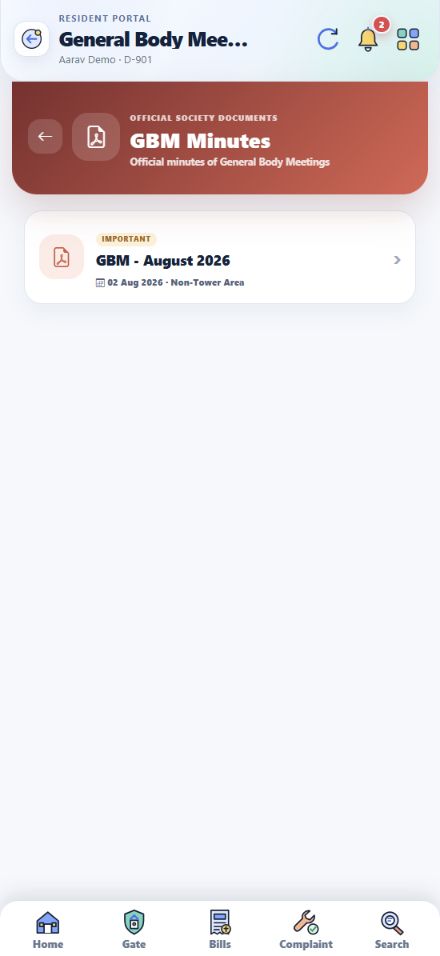
  1. Home पर नीचे Society Library तक scroll करें या All Services खोलें।
  2. GBM Minutes खोलकर meeting की तारीख और venue देखें।
  3. Meeting record में PDF उपलब्ध हो तो उसे खोलकर minutes पढ़ें।
  4. By-Laws और Society Rules के अलग sections भी इसी library में हैं।
यहाँ दिख रहा August 2026 का title, तारीख और venue society के प्रकाशित record से हैं। PDF उपलब्ध हो तो meeting record से खोलें।
App में यह screen खोलें
GBM Minutes, By-Laws और Society Rules पढ़ें का app screenshot, original society record
App screenshot · original society record · बड़ा देखने के लिए tap करें
Society Library

Official By-Laws पढ़ें

Society के original By-Laws app में सीधे पढ़ें।
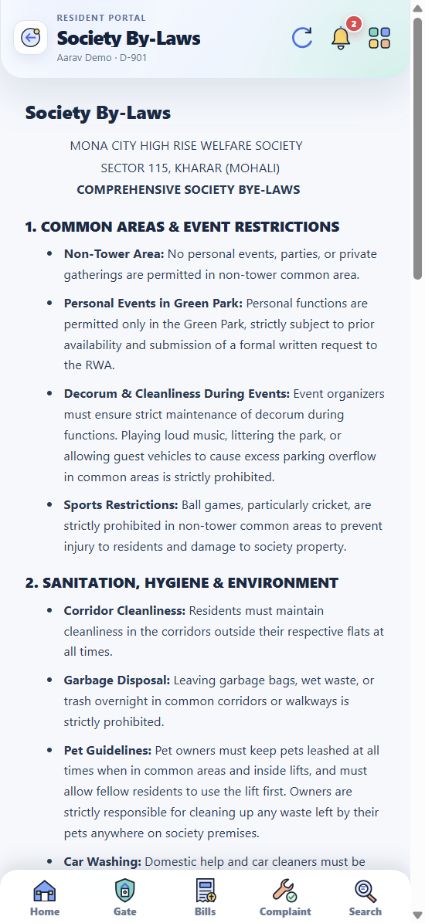
  1. Home → Society Library में By-Laws खोलें।
  2. Common areas, sanitation, parking और दूसरे published sections पढ़ें।
  3. पूरे document को नीचे scroll करके देखें।
  4. अगर read acknowledgement दिखे तो पढ़ने के बाद दर्ज करें।
App में यह screen खोलें
Official By-Laws पढ़ें का app screenshot, original society record
App screenshot · original society record · बड़ा देखने के लिए tap करें
Society Library

Official Society Rules पढ़ें

Society के original Hindi और English rules इस section में हैं।
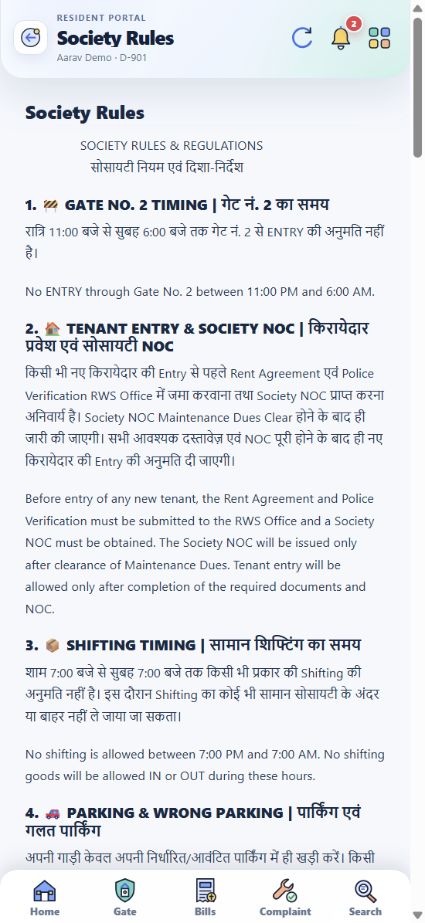
  1. Home → Society Library में Society Rules खोलें।
  2. Gate timings, tenant entry और parking जैसे नियम पढ़ें।
  3. पूरे document को नीचे scroll करके देखें।
  4. अगर read acknowledgement दिखे तो पढ़ने के बाद दर्ज करें।
App में यह screen खोलें
Official Society Rules पढ़ें का app screenshot, original society record
App screenshot · original society record · बड़ा देखने के लिए tap करें
15 · Society accounts

Maintenance defaulter list कहाँ देखें

Home के At a glance section में Defaulter List of Maintenance का shortcut मिलता है।
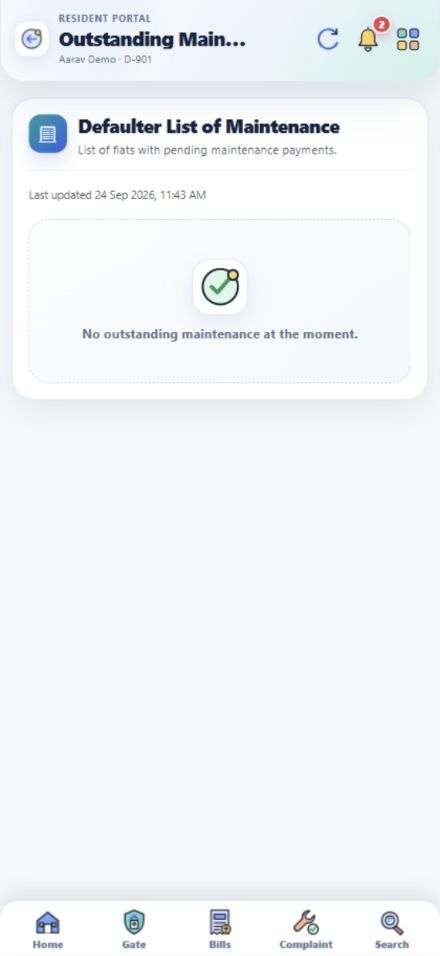
  1. Home पर नीचे At a glance तक scroll करें।
  2. Defaulter List of Maintenance खोलें।
  3. Published outstanding maintenance summary पढ़ें।
  4. अपने flat के exact bills के लिए Bills section खोलें।
App में यह screen खोलें
Maintenance defaulter list कहाँ देखें का app screenshot, dummy demo data
App screenshot · dummy demo data · बड़ा देखने के लिए tap करें
16 · Updates

Notices, contacts और search इस्तेमाल करें

Society के announcements, events और जरूरी contacts आसानी से देखें।
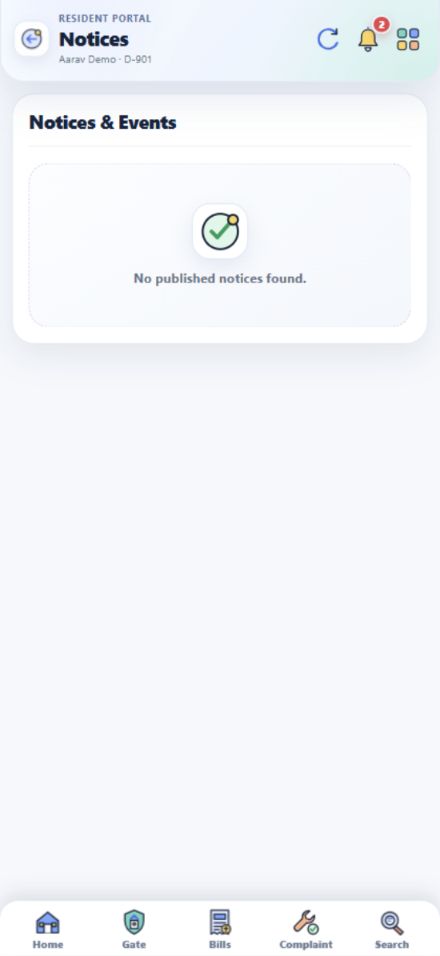
  1. Home → Notice में published notices और events देखें।
  2. Society Contacts से office और emergency numbers खोलें।
  3. नीचे Search से किसी service या जानकारी को खोजें।
  4. Bell icon में आपके account की notifications दिखती हैं।
App में यह screen खोलें
Notices, contacts और search इस्तेमाल करें का app screenshot, dummy demo data
App screenshot · dummy demo data · बड़ा देखने के लिए tap करें
Society directory

Office और emergency contacts देखें

Society Contacts में office और emergency numbers सीधे मिलते हैं।
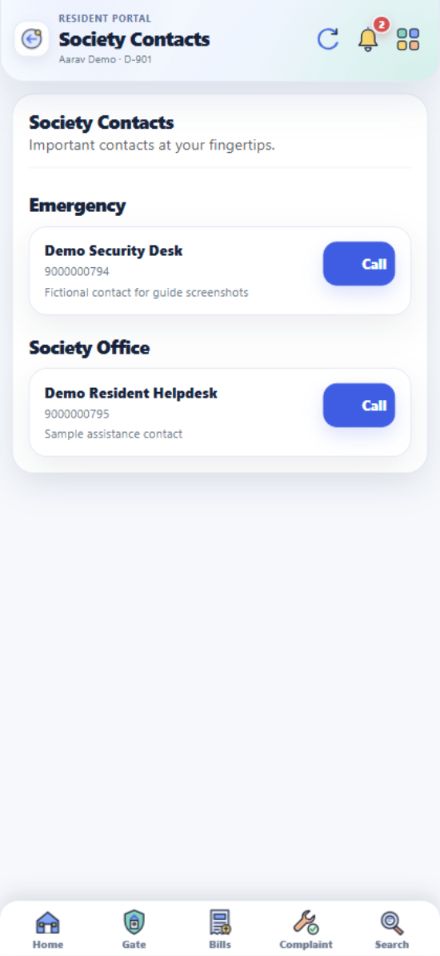
  1. Home → Society Contacts खोलें।
  2. Emergency और Society Office sections देखें।
  3. किसी number पर call करने के लिए उपलब्ध contact link चुनें।
  4. Parking allocation, sticker या record correction के बारे में office से पूछें।
App में यह screen खोलें
Office और emergency contacts देखें का app screenshot, dummy demo data
App screenshot · dummy demo data · बड़ा देखने के लिए tap करें
17 · My Profile

Profile और emergency contact update करें

अपना नाम, registered mobile, flat और emergency contact एक जगह check करें।
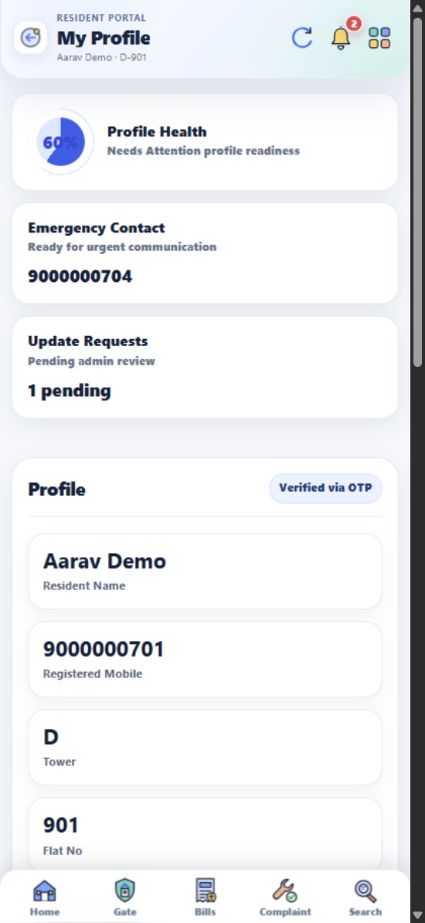
  1. All Services → My Profile खोलें।
  2. Profile section में मौजूदा details पढ़ें।
  3. Update Profile में editable details और emergency contact भरें।
  4. Save Profile दबाएँ और नीचे Profile Update Requests देखें।
App में यह screen खोलें
Profile और emergency contact update करें का app screenshot, dummy demo data
App screenshot · dummy demo data · बड़ा देखने के लिए tap करें
18 · Security

App password set या change करें

Password से login करना है तो App Password screen पर नया password set करें।
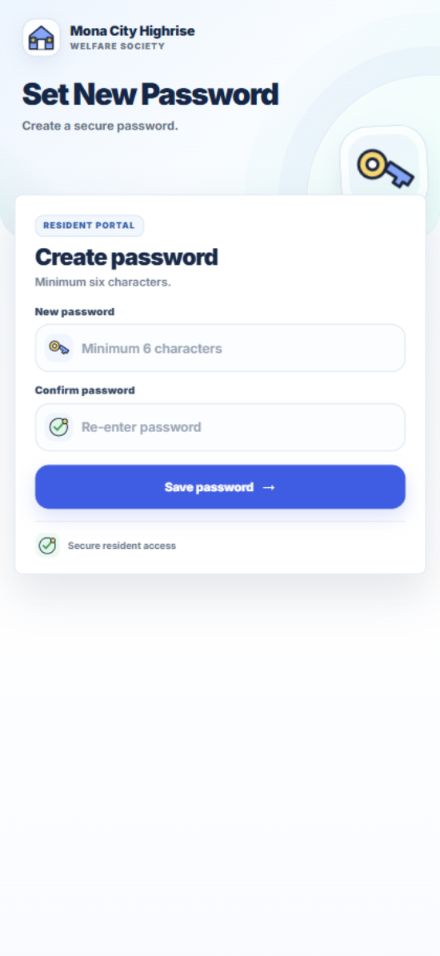
  1. All Services → App Password खोलें।
  2. नया password और confirm password खुद दर्ज करें।
  3. Save password दबाएँ।
  4. अगली बार Resident Login पर registered mobile और नया password इस्तेमाल करें।
Password किसी के साथ share न करें।
App में यह screen खोलें
App password set या change करें का app screenshot, dummy demo data
App screenshot · dummy demo data · बड़ा देखने के लिए tap करें
19 · Security

Logged-in devices देखें और Logout करें

Shared phone या browser पर app इस्तेमाल करने के बाद Logout करें।
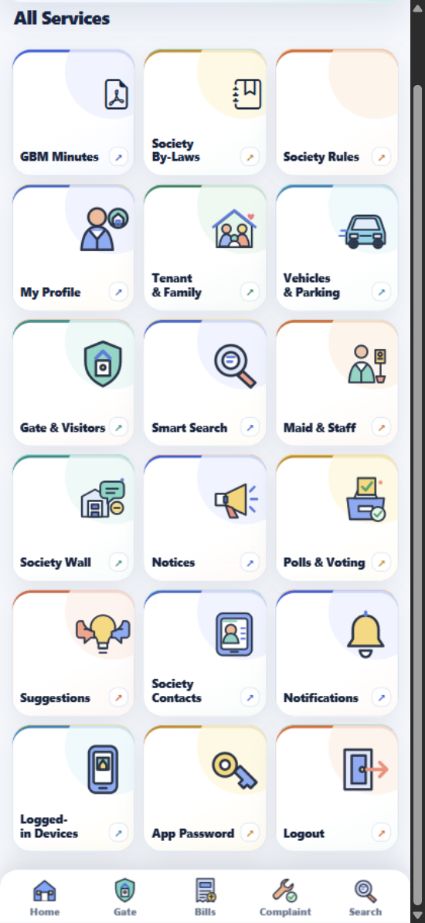
  1. All Services खोलें।
  2. Logged-in Devices में अपने active devices देखें।
  3. All Services → Logout दबाएँ।
  4. Screen Resident Login पर लौट आएगी।
App में यह screen खोलें
Logged-in devices देखें और Logout करें का app screenshot, dummy demo data
App screenshot · dummy demo data · बड़ा देखने के लिए tap करें
Approved tenants के लिए

Tenant की अलग guide

Tenant अपने registered mobile से linked flat की services देख सकते हैं। कौन सी details दिखेंगी, यह account और society approval पर depend करता है।

01 · Tenant login

Tenant अपना dashboard कैसे खोलें

Approved tenant अपने registered mobile से इसी portal में login करके linked flat की services देख सकते हैं।
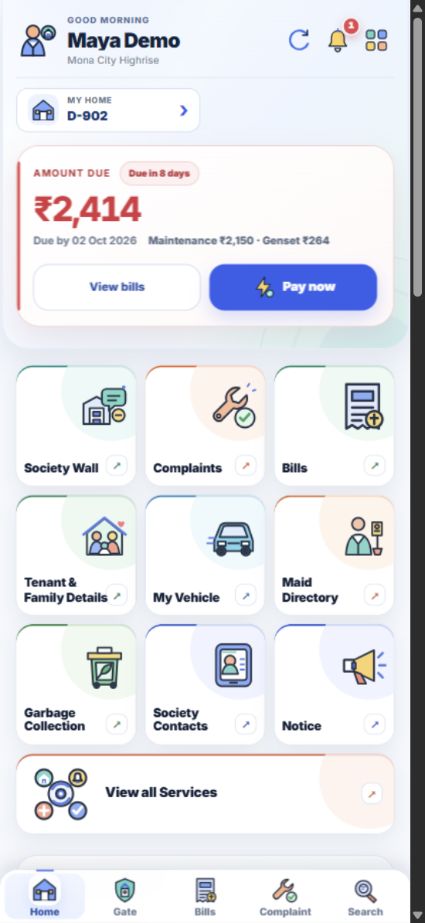
  1. Resident Login page पर tenant का registered mobile डालें।
  2. Password या OTP से sign in करें।
  3. Home पर linked flat, dues, visitor alerts और service shortcuts देखें।
  4. ऊपर चार squares से All Services खोलें।
App में यह screen खोलें
Tenant अपना dashboard कैसे खोलें का app screenshot, dummy demo data
App screenshot · dummy demo data · बड़ा देखने के लिए tap करें
02 · Household

अपना tenant record और members देखें

Tenant & Family में आपके linked flat के tenant records, members और documents मिलते हैं।
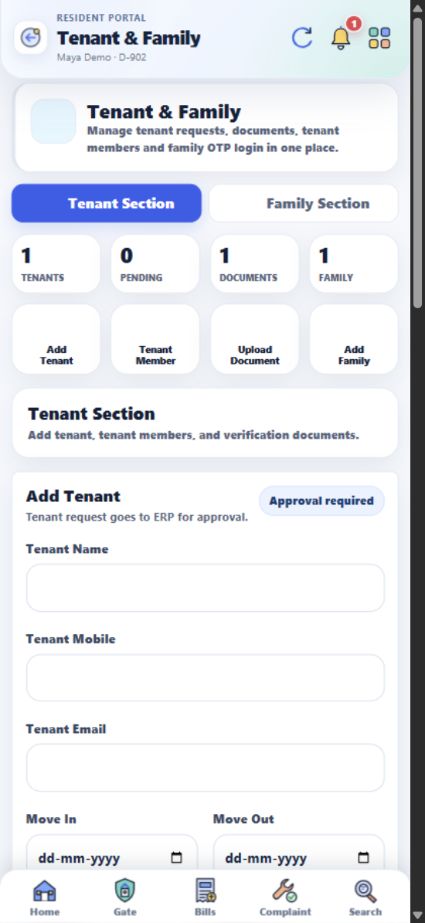
  1. Home → Tenant & Family Details खोलें।
  2. Tenant Section में अपना approval और occupancy status देखें।
  3. Tenant Member से अपने साथ रहने वाले member की detail जोड़ें।
  4. Upload Document से rent agreement या ID proof की verification request भेजें।
Tenant record में बदलाव और approval के लिए society office से पुष्टि करें।
App में यह screen खोलें
अपना tenant record और members देखें का app screenshot, dummy demo data
App screenshot · dummy demo data · बड़ा देखने के लिए tap करें
03 · Visitors

Guest को gate पर entry कैसे दें

आपके linked flat के visitor requests, Gate tab में आते हैं।
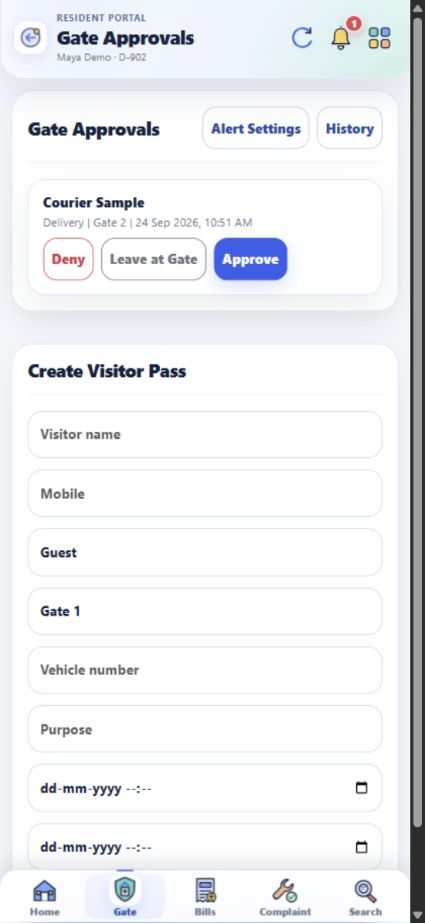
  1. नीचे Gate खोलें।
  2. Visitor name, type और gate देखकर Approve, Deny या Leave at Gate चुनें।
  3. आने वाले guest के लिए Create Visitor Pass भरें।
  4. History और Alert Settings से पुरानी entries और notifications देखें।
App में यह screen खोलें
Guest को gate पर entry कैसे दें का app screenshot, dummy demo data
App screenshot · dummy demo data · बड़ा देखने के लिए tap करें
04 · Bills

Maintenance और genset dues देखें

Flat के उपलब्ध bills और payments की जानकारी tenant login में भी दिखती है।
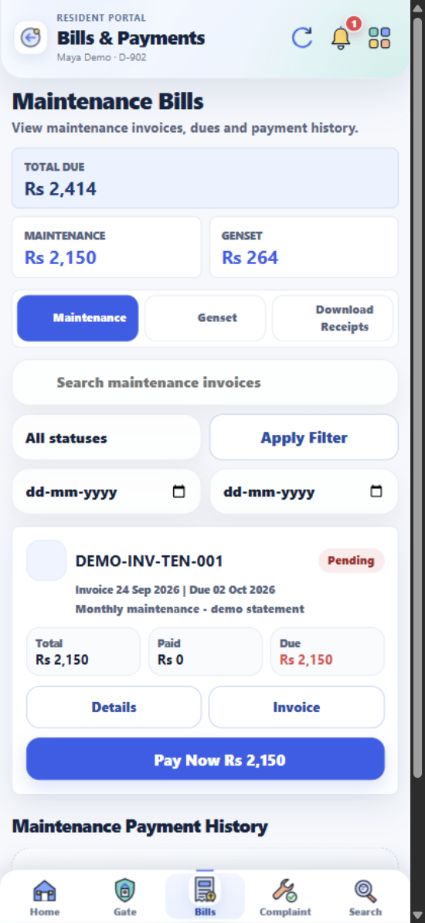
  1. नीचे Bills खोलें और maintenance invoice देखें।
  2. Genset tab में meter/usage और bill देखें।
  3. Details में breakdown खोलें।
  4. Download Receipts में उपलब्ध भुगतान receipts देखें।
App में यह screen खोलें
Maintenance और genset dues देखें का app screenshot, dummy demo data
App screenshot · dummy demo data · बड़ा देखने के लिए tap करें
05 · Parking

अपना vehicle add करें

अपनी इस्तेमाल की गाड़ी को linked flat के record से जोड़ें।
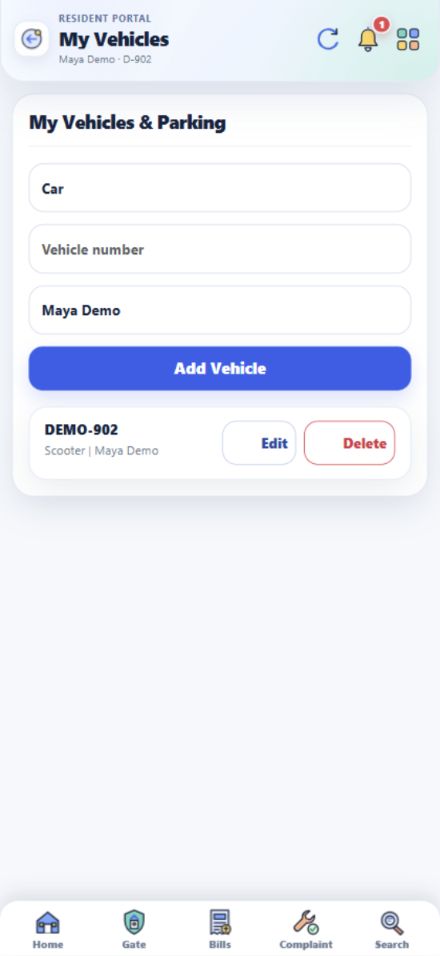
  1. Home → My Vehicle खोलें।
  2. Type, number और owner name देकर Add Vehicle दबाएँ।
  3. नीचे list में record देखकर जरूरत पर Edit करें।
  4. Parking slot या sticker के लिए Society Contacts से office से पूछें।
App में यह screen खोलें
अपना vehicle add करें का app screenshot, dummy demo data
App screenshot · dummy demo data · बड़ा देखने के लिए tap करें
06 · Daily help

Maid, car washer और garbage status देखें

Verified staff खोजें, flat से link करें और garbage collection का daily status देखें।
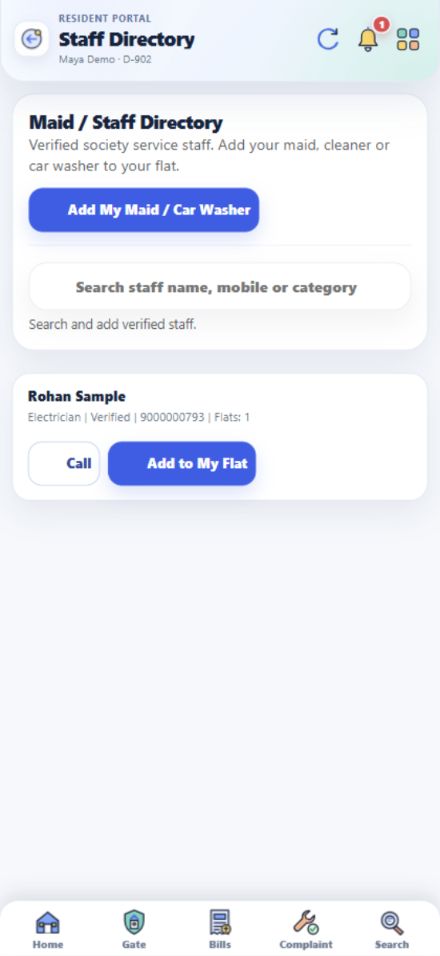
  1. Home → Maid Directory में staff search करें।
  2. Add to My Flat से मौजूद verified staff जोड़ें।
  3. Add My Maid / Car Washer से नई entry और verification request भेजें।
  4. Home → Garbage Collection में collector के आने का समय देखें।
App में यह screen खोलें
Maid, car washer और garbage status देखें का app screenshot, dummy demo data
App screenshot · dummy demo data · बड़ा देखने के लिए tap करें
07 · Community

Complaint, Society Wall, poll और सुझाव

Tenant भी flat से जुड़े daily issues और society updates देख सकते हैं।
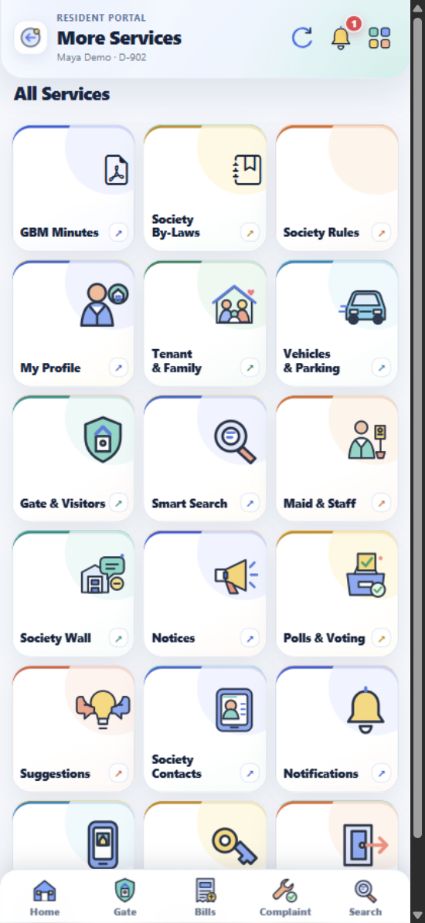
  1. Complaint में issue दर्ज करके status follow करें।
  2. Society Wall में posts पढ़ें और जहाँ उपलब्ध हो वहाँ react या comment करें।
  3. All Services → Polls & Voting में current poll देखें।
  4. Suggestions में feedback भेजें; Notices और GBM Minutes में published updates पढ़ें।
App में यह screen खोलें
Complaint, Society Wall, poll और सुझाव का app screenshot, dummy demo data
App screenshot · dummy demo data · बड़ा देखने के लिए tap करें
08 · Account

Profile, password और Logout कहाँ है

All Services से linked flat की profile और अपनी login settings खोलें। अपनी tenant details Tenant & Family में देखें।

  1. All Services → My Profile खोलकर linked flat की profile देखें।
  2. अपने tenant name और registered mobile के लिए Tenant & Family Details खोलें।
  3. App Password से अपना password set करें।
  4. साझा phone इस्तेमाल करने पर Logout जरूर करें।
App में यह screen खोलें
Profile, password और Logout कहाँ है का app screenshot, dummy demo data
App screenshot · dummy demo data · बड़ा देखने के लिए tap करें
अक्सर पूछे जाने वाले सवाल

पूरी app के सवाल-जवाब

App की सभी main services को 6 sections में समझें। किसी जवाब के पूरे steps चाहिए हों तो वहीं से संबंधित guide खोलें।

Login, Home और account

Resident app में login कैसे करें?

Resident Login पर registered mobile number डालें। Password या Login with OTP से sign in करें। Login के बाद Home पर आपका linked flat और जरूरी shortcuts दिखते हैं।

पूरे steps देखें ↗
एक mobile से एक से ज़्यादा flats जुड़े हों तो home कैसे बदलें?

Home पर My Home खोलें। अगर account से कई flats linked हैं, तो Switch Home से सही flat चुनें।

पूरे steps देखें ↗
Notifications कहाँ दिखेंगी?

Home के ऊपर bell icon दबाएँ या All Services → Notifications खोलें। Visitor और दूसरे account alerts वहीं देखें।

पूरे steps देखें ↗
App में कोई bill, notice या service जल्दी कैसे खोजें?

नीचे Search दबाएँ या All Services → Smart Search खोलें। कम से कम दो अक्षर लिखकर bills, receipts, complaints, notices, staff और members खोजें।

पूरे steps देखें ↗
अपना profile या emergency contact कैसे update करें?

All Services → My Profile में details देखें। Update Profile में बदलाव भरकर Save Profile दबाएँ और Profile Update Requests में status देखें।

पूरे steps देखें ↗
Password कैसे set या change करें?

All Services → App Password खोलें, नया password और उसका confirmation भरें, फिर Save password दबाएँ। अगली बार registered mobile के साथ नया password इस्तेमाल करें।

पूरे steps देखें ↗
Logged-in devices और Logout कहाँ हैं?

All Services → Logged-in Devices में login history देखें। Shared phone इस्तेमाल करने के बाद All Services → Logout दबाएँ।

पूरे steps देखें ↗

Tenant, family, vehicle और staff

Resident नया tenant कैसे add करें?

Home → Tenant & Family Details → Tenant Section → Add Tenant में नाम, mobile और रहने की dates भरें। Save Tenant के बाद Tenant Records में approval status देखें।

पूरे steps देखें ↗
Tenant request save होने पर login तुरंत चालू हो जाता है?

Tenant request को society office से approval चाहिए। Tenant Records में approval और active status check करें; approval के बाद registered mobile से login करें।

पूरे steps देखें ↗
Tenant के साथ रहने वाले member को कैसे add करें?

Tenant Section में Tenant Member खोलें, सही tenant चुनें और member का नाम, relation और बाकी details save करें। Entry नीचे Tenant Members में दिखेगी।

पूरे steps देखें ↗
Rent agreement, police verification या ID proof कहाँ upload करें?

Tenant Section → Upload Document में tenant और Document Type चुनें। PDF या image attach करके Upload Tenant Document दबाएँ; Tenant Documents में verification status देखें।

पूरे steps देखें ↗
Family member और emergency contact कैसे add करें?

Tenant & Family Details → Family Section में Add Family Member खोलें। Name, relation और mobile भरें; ज़रूरत हो तो Emergency चुनें। Family Details में entry edit या delete भी कर सकते हैं।

पूरे steps देखें ↗
Vehicle add, edit या delete कैसे करें?

Home → My Vehicle में type, number और owner name भरकर Add Vehicle दबाएँ। नीचे list से Edit या Delete चुनें।

पूरे steps देखें ↗
Parking slot या sticker कहाँ से मिलेगा?

My Vehicle में vehicle record दिखता है। Parking slot या sticker के लिए अलग request button नहीं दिखता; Society Contacts में office से बात करें।

पूरे steps देखें ↗
Maid या car washer को अपने flat से कैसे जोड़ें?

Home → Maid Directory में verified staff खोजकर Add to My Flat चुनें। नया worker हो तो Add My Maid / Car Washer से details भेजें और verification status देखें।

पूरे steps देखें ↗

Gate और daily services

Gate पर visitor आए तो क्या करें?

नीचे Gate खोलें और waiting request में visitor details देखें। सही visitor के लिए Approve, मना करने के लिए Deny, या सामान gate पर रखने के लिए Leave at Gate चुनें।

पूरे steps देखें ↗
Guest के आने से पहले visitor pass कैसे बनाएँ?

Gate → Create Visitor Pass में visitor name, type, gate और valid time भरें। बने हुए passes My Visitor Passes में दिखेंगे।

पूरे steps देखें ↗
Gate request में visitor photo क्यों नहीं दिख रही?

Photo तभी दिखती है जब gate staff ने request के साथ उसे attach किया हो। जवाब देने से पहले नाम, type और gate details check करें।

पूरे steps देखें ↗
पुराने visitors और gate alerts कहाँ देखें?

Gate Approvals में History से पुराने visits देखें। Alert Settings में household के लिए उपलब्ध visitor notification settings बदलें।

पूरे steps देखें ↗
Garbage collection कब हुआ और miss होने पर क्या करें?

Home → Garbage Collection में आज का status और expected time देखें। Collection miss हो तो note के साथ Report Not Collected भेजें।

पूरे steps देखें ↗

Bills, payments और help

Maintenance bill और pending amount कहाँ देखें?

नीचे Bills → Maintenance खोलें। Invoice में due date, amount और Details में charges का breakdown तथा payment summary देखें।

पूरे steps देखें ↗
Genset meter reading और bill कहाँ मिलेगा?

Bills → Genset में Meter & Usage, bill amount और Payment Summary देखें। पुराने payments Genset Payment History में मिलेंगे।

पूरे steps देखें ↗
Receipt क्यों नहीं दिख रही?

Bills → Download Receipts में fully paid society bills की receipts दिखती हैं। Pending या partially paid bill की receipt अभी उपलब्ध नहीं होगी।

पूरे steps देखें ↗
Pay Now दबाने पर क्या होगा?

Pay Now official payment flow खोलता है। Payment के बाद bill status और receipt Bills में check करें।

पूरे steps देखें ↗
Complaint कैसे डालें और उसका status कहाँ देखें?

नीचे Complaint खोलें, category और problem की details देकर submit करें। All, Active और Closed filters में ticket तथा resolution updates देखें।

पूरे steps देखें ↗
Suggestion और Complaint में क्या फर्क है?

किसी problem पर action और follow-up चाहिए तो Complaint डालें। नए idea, general suggestion या app feedback के लिए All Services → Suggestions खोलें।

पूरे steps देखें ↗

Society updates और documents

Society Wall पर post या comment कैसे करें?

Home → Society Wall खोलें। What’s on your mind? से post बनाएं; दूसरे posts पर React, Comment, Save या Share कर सकते हैं।

पूरे steps देखें ↗
Poll में vote कैसे दें?

All Services → Polls & Voting में active poll खोलें, अपना option चुनें और vote submit करें। Vote देने के बाद चुना हुआ option वहीं दिखेगा।

पूरे steps देखें ↗
GBM Minutes और meeting PDF कहाँ पढ़ें?

Home की Society Library → GBM Minutes खोलें। Meeting date और venue देखें; PDF उपलब्ध हो तो meeting record से खोलें।

पूरे steps देखें ↗
Society के By-Laws कहाँ मिलेंगे?

Society Library → By-Laws में published sections पढ़ें। अगर read acknowledgement दिखे तो पढ़ने के बाद उसे दर्ज करें।

पूरे steps देखें ↗
Society Rules कहाँ पढ़ें?

Society Library → Society Rules खोलें। Gate, tenant entry और parking जैसे published rules वहीं पढ़ें।

पूरे steps देखें ↗
Maintenance defaulter list कहाँ है?

Home पर At a glance में Defaulter List of Maintenance खोलें। अपने flat के exact invoices और dues के लिए Bills देखें।

पूरे steps देखें ↗
Notices और events कहाँ दिखेंगे?

Home → Notice में society के published notices और events देखें। Account से जुड़े alerts bell icon में मिलेंगे।

पूरे steps देखें ↗
Office या emergency number कहाँ मिलेगा?

Home → Society Contacts में office और emergency sections खोलें। उपलब्ध number पर Call button दबा सकते हैं।

पूरे steps देखें ↗

Tenant के लिए

Tenant अपना dashboard कैसे खोले?

Approved tenant Resident Login पर अपने registered mobile से password या OTP के जरिए sign in करें। Home पर linked flat और उपलब्ध services दिखेंगी।

पूरे steps देखें ↗
Tenant अपनी details, members और documents कहाँ देखे?

Home → Tenant & Family Details → Tenant Section में अपना record, occupancy status, members और documents देखें। उपलब्ध forms से member या document details भेजें।

पूरे steps देखें ↗
Tenant अपने guest को gate से कैसे entry दे?

Gate में linked flat की waiting request खोलें और Approve, Deny या Leave at Gate चुनें। Guest पहले से आना हो तो Create Visitor Pass इस्तेमाल करें।

पूरे steps देखें ↗
Tenant maintenance और genset dues कैसे देखे?

नीचे Bills में Maintenance और Genset tabs खोलें। Details में bill breakdown और Download Receipts में उपलब्ध receipts देखें।

पूरे steps देखें ↗
Tenant अपनी गाड़ी कैसे add करे?

Home → My Vehicle में vehicle type, number और owner name भरें। Parking slot या sticker के लिए Society Contacts से office से पूछें।

पूरे steps देखें ↗
Tenant maid और garbage status कहाँ देखे?

Maid Directory में staff खोजें या अपने flat से link करें। Garbage Collection में आज के collector का status देखें।

पूरे steps देखें ↗
Tenant complaint, poll और society updates कैसे देखे?

Complaint से issue दर्ज करें; Society Wall, Polls & Voting, Suggestions, Notices और GBM Minutes में उपलब्ध updates देखें।

पूरे steps देखें ↗
Tenant अपना password, profile और Logout कहाँ पाए?

Tenant & Family Details में अपनी tenant details देखें। All Services में My Profile, App Password और Logout के रास्ते मिलते हैं। Details में correction चाहिए तो resident या society office से बात करें।

पूरे steps देखें ↗

अब अपना account खोलें

Registered mobile number और password या OTP तैयार रखें। अपनी details बदलनी हों तो My Profile खोलें या Society Contacts से office को contact करें।

कैसे करें